Skip to content
Ways to Find Technical and App Issues in an Outdated Shopify Store
-
2905 words · 14 min read
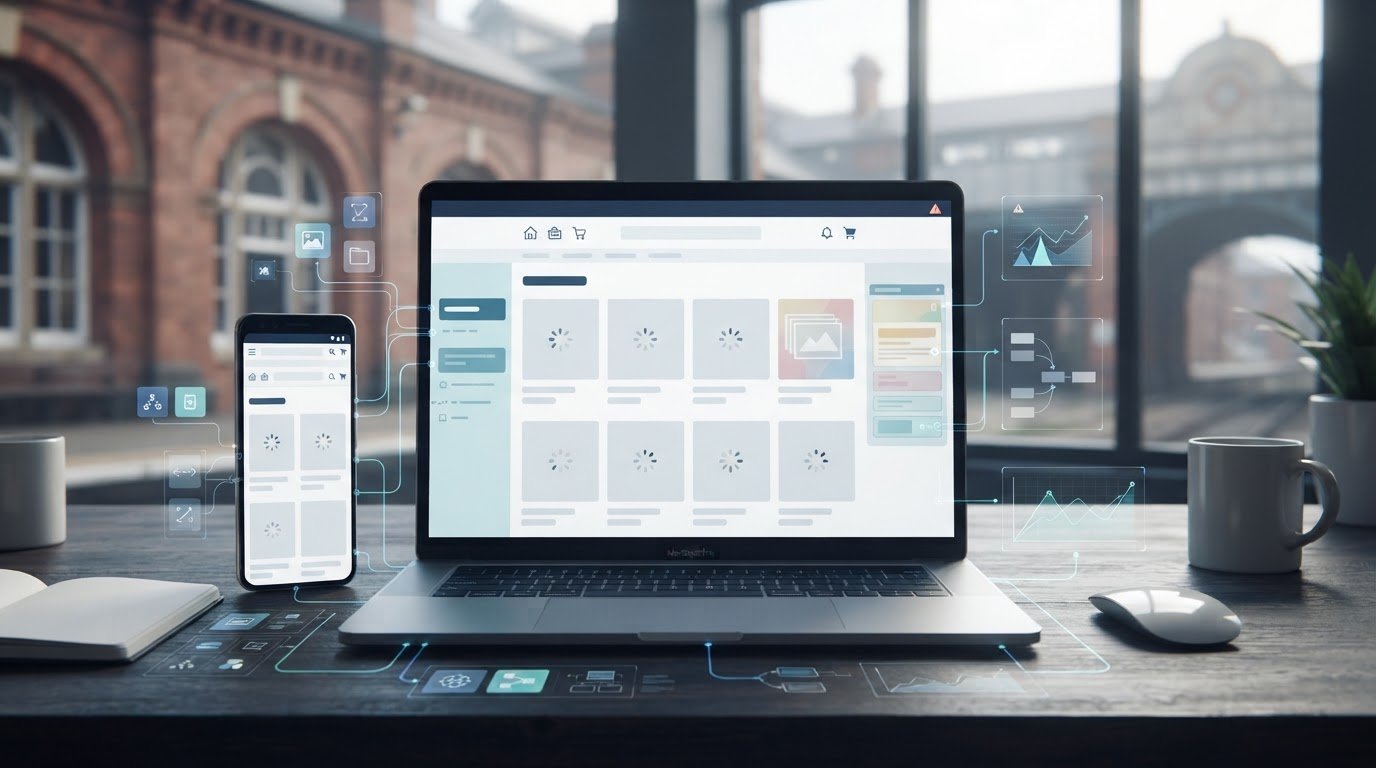
An outdated Shopify store can hide performance, compatibility and reliability problems that aren’t obvious from the storefront. A technical audit helps identify where the theme, integrations, domain settings or browser behaviour need attention; a mobile performance score below 50 in Google PageSpeed Insights is a signal the store needs a closer look. Reviewing unused and outdated apps matters too, as they can leave code that affects performance.
It’s easy to assume a store is working well because customers can still browse and buy. But older themes, legacy features and unsupported apps can create problems that only emerge during a structured review. This article explains what to include in a technical audit, how to assess apps and themes, and how to prioritise practical updates. You’ll have a clearer way to spot problems in an outdated Shopify store and decide which changes could make the biggest difference to the customer experience.
Key Takeaways
- Use a structured technical audit to pinpoint problems with performance, integrations, domain settings and browser compatibility.
- Review installed apps for tools you no longer use, outdated integrations and apps that aren’t actively supported.
- Check whether your theme is maintained and updated, then weigh a targeted theme update against a full redesign based on the changes your store needs.
- Modernise in a planned order: identify priorities, keep a backup theme before major changes, and test the results.
- Use Shopify Store Design & Development when your store needs broader design or development work beyond routine checks and updates.
1. Technical audits
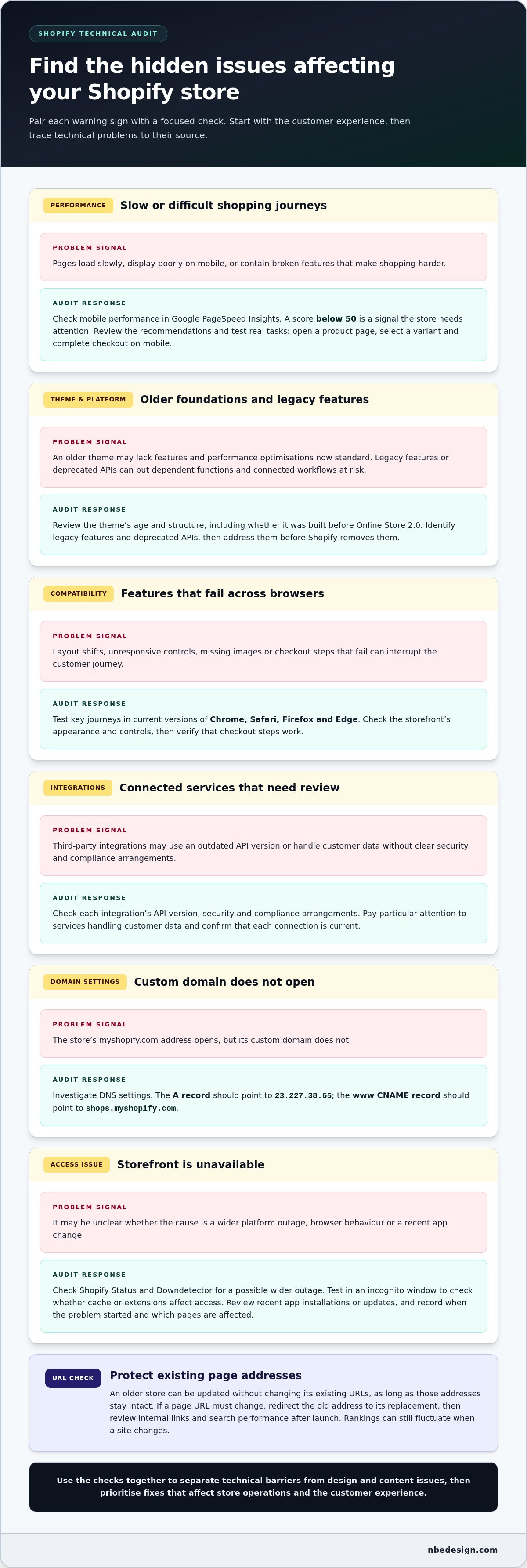
A technical audit examines how your Shopify store performs, functions and connects with other services. Start with Google PageSpeed Insights, checking mobile performance and its recommendations. A score below 50 signals that the store needs attention. Review the results alongside real shopping tasks, such as opening a product page, selecting a variant and completing checkout on a mobile device.
An outdated Shopify store may load slowly, display poorly on mobile or have broken features that make shopping harder. These issues can undermine customer confidence and contribute to abandoned purchases. Technical problems may also make pages harder for search engines to crawl or understand. An audit helps separate technical barriers from design and content issues so you can prioritise fixes.
Check the theme’s age and structure as part of the review. Older themes, particularly those built before Online Store 2.0, may lack features and performance optimisations that are now standard. Also identify legacy features and deprecated APIs. Address these before Shopify removes them, as dependent functions or connected workflows could stop working.
Test key customer journeys in current versions of Chrome, Safari, Firefox and Edge. Look for layout shifts, unresponsive controls, missing images and checkout steps that fail. Review third-party integrations that handle customer data, too. Check their security and compliance arrangements and whether each integration uses a current API version.
For domain issues, compare the custom domain with the store’s myshopify.com address. If the latter opens but the custom domain does not, investigate its DNS settings: the A record should point to 23.227.38.65, and the www CNAME record should point to shops.myshopify.com. Check Shopify Status and Downdetector to see whether a wider platform outage could explain the problem.
If the storefront is unavailable, test it in an incognito window to see whether browser cache or extensions are affecting access. Then review recent app installations or updates. If the problem began immediately after one, the change may be connected. Record when it started and which pages are affected to narrow down the cause.
You can update an older Shopify store without changing its existing URLs, as long as you keep those addresses intact. If a page URL must change, redirect the old address to its replacement, then review internal links and search performance after launch. Rankings can still fluctuate when a site changes.
Together, these checks help Shopify store owners understand the state of their store’s technology and what needs attention. Focus on issues that can affect store operations: address legacy features and deprecated APIs before Shopify removes them, and verify that third-party integrations handling customer data are secure and compliant.
For a consistent check, test the store in current versions of Chrome, Safari, Firefox and Edge. If the storefront is unavailable, check Shopify Status and Downdetector for a possible platform-wide outage. Then use incognito mode to see whether browser cache or extensions are responsible. These steps help distinguish a store issue from a broader access problem.
2. Unused and outdated apps
An app can keep affecting a Shopify store after its purpose has passed. Unused apps may still load code that affects performance, while overlapping tools can add scripts and features the storefront no longer needs. For example, a discount app might continue loading resources after a promotion ends. Reviewing your app list can reveal this hidden technical burden.
Start in Shopify’s app settings and record each app’s purpose, owner and connection to store activity. Does it support a current task, such as stock control, customer service or product reviews? Check when it was last used and whether a team member relies on it. An app with no clear business role is worth investigating, but not automatically deleting.
Before removing an app, identify what it changes. Some apps add theme code, app embeds, snippets or scripts; others connect to workflows or external services. Establish whether product pages, checkout steps, emails or stock updates depend on it. For example, removing a reviews app without checking its theme elements could leave blank sections on product pages.
When an app is no longer needed, follow its removal instructions and inspect the storefront afterwards. Check representative product, collection and cart pages on mobile and desktop. Look for missing content, broken controls or leftover code. If the developer’s uninstall process leaves theme changes behind, careful theme editing may be needed. Record the app, removal date and pages tested.
For apps still in use, review the developer’s update history, support information and compatibility details. Confirm that the app is actively supported and uses current API versions. Deprecated API versions can be shut down without warning, potentially disrupting connected workflows. Record each integration’s purpose, the data it handles and the business processes that could be affected by an interruption.
Pay particular attention to integrations that handle customer data. Check their security and compliance arrangements, as well as the permissions they request. If an app asks for access unrelated to its function, investigate before keeping it connected. This review clarifies which systems access customer information and whether each connection is still necessary.
Make changes in a controlled sequence rather than removing several apps at once. Record the starting setup, change one app, then test the affected journey before moving on. This makes it easier to trace a fault to a specific change and restore the previous setup if needed. If app-related issues reveal wider design or development work, discuss your Shopify store requirements with the team.
3. How can I check whether a Shopify store theme is outdated?
A theme’s age alone doesn’t prove it’s outdated. Check whether its developer maintains it, whether updates are available and whether its features still meet your store’s needs. In Shopify admin, note the published theme’s name and version, then compare them with the developer’s update information. A theme with no recent maintenance information deserves closer review, especially if you rely on customised features.
Next, compare the theme’s capabilities with the tasks customers need to complete. Review a product page, collection page and navigation menu. Check that product options display clearly, collection filters work as expected and the menu remains usable on smaller screens. Inspect store features added through theme settings, such as promotional banners or announcement bars. A dated appearance isn’t the only concern: missing or unreliable functions can also signal a poor fit.
Before applying an available theme update, read the developer’s notes. Look for changes to features you use, compatibility details and instructions for custom code. An update can replace or alter customised files, so don’t assume your edits will carry over. Duplicate the theme before a major change, then apply the update to the copy. This gives you a version to compare and a way to restore the previous setup.
Preview both versions and test the same customer journeys. Open a product, select an option, add it to the basket and check that key page elements remain in place. Compare desktop and mobile layouts, including the header, product images and calls to action. If the update moves a section or removes a custom feature, note the difference before publishing. Testing a duplicate helps reveal problems without changing the live storefront.
Theme maintenance also depends on how much custom code the store has accumulated. A developer’s update may not cover changes made directly to theme files, and those edits can complicate future maintenance. Record each custom change, its purpose and the pages it affects. For example, document a custom product badge or modified navigation menu so you can check whether an update preserves it.
Treat the theme as outdated if it’s no longer actively maintained, available updates are being missed or essential store functions don’t work reliably. Review the impact of relevant updates, then test the copy before publishing. If the theme can’t support the experience your products and customers need, a broader redesign may be more suitable.
4. How do Shopify theme updates compare with a full store redesign?
A Shopify theme update changes an existing theme, while a full redesign rethinks the storefront more broadly. An update may bring the theme to a maintained version or adjust specific layouts. A redesign can reshape navigation, page templates, branding and customer journeys. The right choice depends on whether the problem is within the theme or across the store experience.
Choose an update when the current structure still suits your products and customers. If your menu works, product information is easy to scan and the main issue is an outdated theme version, an update may address it. You can also adjust individual elements, such as making product options more prominent or refining a mobile layout, without rebuilding every template.
A redesign makes more sense when several parts of the storefront need to change together. A retailer adding product categories may need a different collection structure, navigation and page layout. If customers struggle to find products because of confusing menus and inconsistent templates, changing one theme file won’t solve the underlying problem. A redesign can align these elements around clearer shopping journeys.
Consider how much custom code the existing theme contains. An update may require customisations to be reviewed or recreated, while a redesign gives you the opportunity to decide which changes still serve a purpose. For instance, you might remove a custom product badge that no longer suits the range. A useful project scope lists each feature, its business purpose and whether it should remain.
Both approaches need practical testing before changes reach customers. For an update, compare the existing theme with the updated copy, focusing on product pages, navigation and mobile layouts. For a redesign, test the new page structure, product discovery and basket journey using representative products. In either case, confirm that product details, links and customer-facing content appear correctly before publishing.
Pay attention to search visibility during either project. Keeping existing page addresses helps preserve continuity. If a redesign changes a URL, redirect the previous address to its replacement. Review internal links and key landing pages after launch. Neither an update nor a redesign guarantees unchanged rankings, so monitor performance and investigate changes to important pages.
To decide, group the issues identified in your audit by scope. If the fixes centre on theme maintenance or a few specific layouts, start by assessing an update. If they involve navigation, page structure, brand presentation and multiple customer journeys, scope a redesign instead. This distinction helps you avoid rebuilding a sound storefront or applying a small fix to a wider problem.
5. What are the steps to modernise an outdated Shopify store?
Start by turning audit findings into a prioritised action plan. Group issues by customer impact, technical risk and business importance. A broken product option needs attention sooner than a minor colour adjustment. Record the affected page, the problem and the intended fix. This gives store owners and developers a shared reference instead of a long, unranked task list.
Document the current setup before making changes. Save the active theme as a backup and keep another copy for planned work. Record installed apps, custom theme edits and key storefront workflows. For example, note how a product bundle, delivery message or stock update currently works. These details make it easier to spot what a change has altered and restore the previous theme if needed.
Then tackle changes in manageable groups. Remove redundant app code only after checking which pages and workflows depend on it. Update supported integrations and theme components in a controlled order. Avoid changing several connected systems at once: if a basket feature fails, it will be harder to identify the cause. After each change, test the relevant customer journey before moving on.
Review the shopping experience using real products and realistic customer actions. Open a collection, find a product, choose its options and add it to the basket. Check product information, images, buttons and navigation on mobile and desktop. An outdated Shopify store may have a size selector that works on a laptop but is difficult to use on a phone. Identify the specific design or theme fix before signing off.
When the main changes are ready, prepare a launch checklist. Confirm the homepage, product and collection pages, navigation, basket and checkout. Check that important links still lead to the right destinations and that changed page addresses have appropriate redirects. Compare the finished storefront with your documented starting point, including custom features and app-dependent content.
After publishing, monitor the store’s key journeys and record any issues. Note the page, device, browser and action that produced each problem. If a change causes a fault, use your backup theme to return to the previous version while you investigate. Keep a change log with dates and descriptions so future maintenance can trace when a feature or workflow changed.
Modernising an outdated Shopify store works best as a managed sequence, not one large, untested release. If the work involves connected theme, design or development changes, discuss your Shopify store modernisation and the scope of the changes required.
Shopify merchants are advised to keep backup themes so they can roll back before major changes. Keep the backup separate from the version being edited, and check that it can be restored before publishing. This provides a practical fallback if testing reveals a fault that cannot be resolved promptly. Once the change is stable, record what was updated and checked. That record can guide future work, help identify the source of later issues and keep maintenance focused on the storefront areas that need attention.
NB eCommerce & Design: Shopify Store Design & Development
NB eCommerce & Design can help when audit findings call for more than routine app or theme updates. Its Shopify Store Design & Development service supports retailers who need broader storefront improvements, such as clearer navigation, updated page layouts or development work to address technical issues.
If modernisation also involves moving your business to Shopify or connecting online and in-store operations, Shopify Migration Services and Shopify POS Integration may be relevant. The right next step depends on the changes your store needs and how its current setup supports your retail operations.
To discuss your store’s requirements, contact NB eCommerce & Design.
Give your store a clear next step
Modernisation works best when it supports a specific business goal, rather than change for its own sake. Decide what customers should be able to do more easily, and use that as the test for your next improvement. A clearer product journey, smoother online and in-store operations, or a more manageable store setup can each guide the work.
For an outdated Shopify store, turn your findings into a focused brief. Set out the customer problem, the part of the store affected and what a better experience should look like. This gives everyone involved a practical direction and keeps decisions centred on your retail needs.
If you’re ready to explore what comes next, plan your store’s next development step with NB eCommerce & Design. A thoughtful, well-scoped change can give your Shopify store a stronger foundation for the way your business operates and grows.
Frequently Asked Questions
What makes a Shopify store outdated in 2026?
A Shopify store is outdated when its theme, integrations or customer experience no longer meet current needs. For example, a theme built before Online Store 2.0 may lack features and performance optimisations now considered standard. A store can also feel dated if customers struggle to find products, use mobile pages or complete key tasks. The practical test is whether its technology remains maintained and supports the way the retailer sells today.
When should I upgrade an outdated Shopify store to Shopify 2.0?
Consider upgrading when your older theme, particularly one built before Online Store 2.0, lacks features or performance optimisations your store needs, is no longer actively maintained, or essential functions are unreliable. Check available updates and test them on a duplicate theme before publishing.

- Posted in:
- e-commerce
- outdated shopify store
- Shopify
- Shopify apps
- Shopify themes
- store performance
- technical audit
- website maintenance