Skip to content
Shopify POS Setup: The Complete Step-by-Step Guide for 2026
-
3144 words · 15 min read

Thinking about unifying your online store with your brick-and-mortar shop? The prospect of a new point-of-sale system can feel daunting. From choosing the right card reader to worrying about whether your inventory will *actually* sync correctly, the technical details can quickly become overwhelming. That's why a rock-solid shopify pos setup is no longer a 'nice-to-have'-it's essential for growth. But for UK retailers like you, navigating the process doesn't have to be a source of stress.
As official Shopify Experts, we've guided countless businesses through this exact transition. In this complete, step-by-step guide for 2026, we demystify the entire process from start to finish. We'll help you confidently select the perfect hardware for your needs, configure every setting for seamless inventory management, and train your staff for a smooth, stress-free launch. Consider this your expert-led checklist to building a reliable, unified system that streamlines your sales, delights your customers, and empowers your business for the future.
Key Takeaways
- A pre-setup checklist is the foundation for a seamless shopify pos setup, preventing common errors before you even start configuring your system.
- Learn to configure your Shopify Admin correctly to ensure your online and brick-and-mortar inventory syncs flawlessly from day one.
- Discover how to choose the right hardware for your business type to create a fast and professional checkout experience for your UK customers.
- A successful launch depends on a well-prepared team; find out how to train your staff and test your system for a confident go-live day.
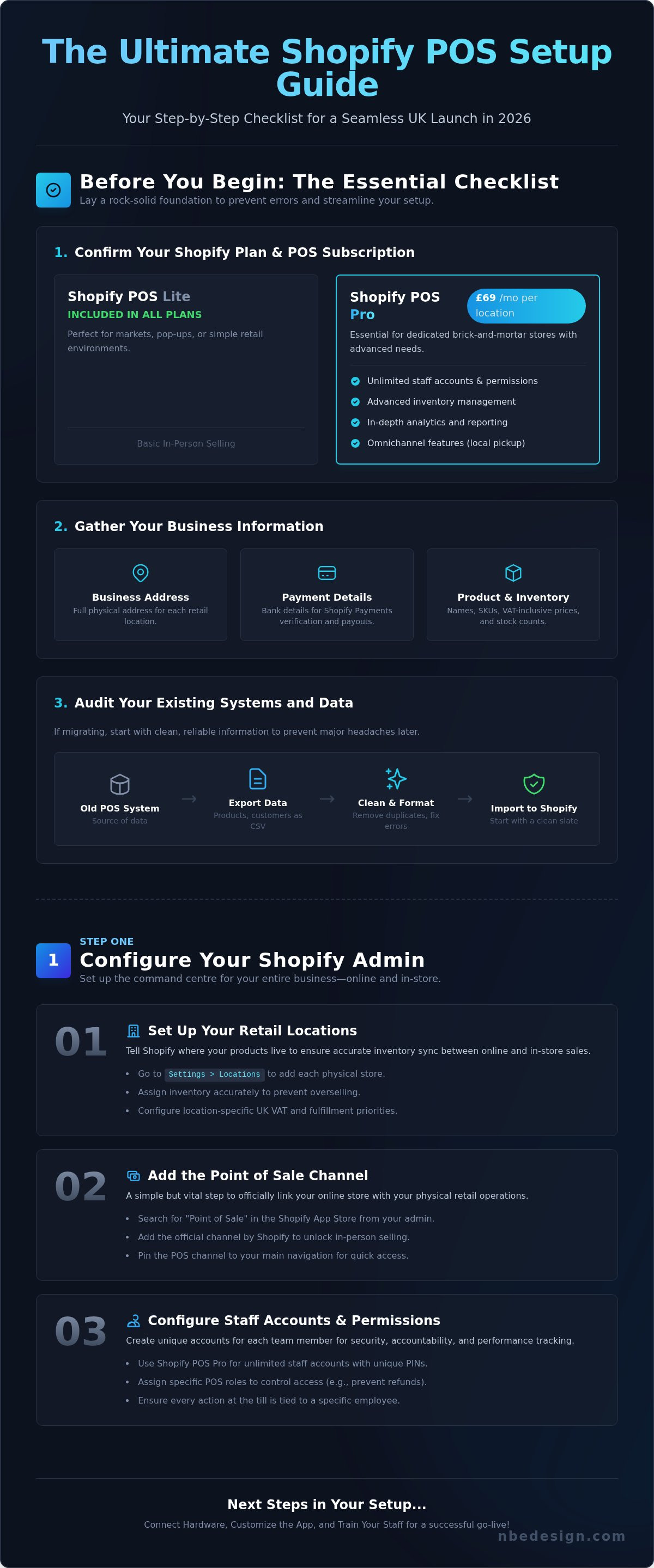
Before You Begin: The Essential Shopify POS Setup Checklist
A successful shopify pos setup begins long before you open the app. Think of this stage as a crucial pre-flight check for your retail operations. As a platform that has evolved significantly throughout Shopify's history and growth, its Point of Sale system is powerful, but that power is best harnessed with solid preparation. Gathering your information and making key decisions upfront will streamline the entire process, prevent errors, and ensure your new system is perfectly aligned with your UK business from day one.
This checklist ensures you have a rock-solid foundation, saving you time and helping you make the switch with confidence.
Confirm Your Shopify Plan and POS Subscription
Your first step is to ensure your Shopify subscription aligns with your retail ambitions. All standard Shopify plans (Basic, Shopify, and Advanced) include Shopify POS Lite at no extra cost, which is perfect for markets, pop-ups, or simple retail environments. However, if you run a dedicated brick-and-mortar store, you will likely need the advanced features of Shopify POS Pro. For a monthly fee of £69 per location, POS Pro unlocks essential tools to manage a growing retail business, including:
- Unlimited staff accounts with unique PINs and permissions
- Advanced inventory management (stock adjustments, purchase orders, transfers)
- In-depth, in-store analytics and reporting
- Omnichannel features like local pickup and inventory lookup across locations
Gather Your Business Information
Having your core business details organised and ready will make the configuration process significantly faster. Before you start, compile the following information:
- Business Address: The full physical address for each retail location you plan to set up in Shopify.
- Payment Provider Details: For the most seamless experience in the UK, you'll want to use Shopify Payments. Have your business bank details ready for verification and payouts.
- Product & Inventory Data: Prepare a complete list of your products, including names, SKUs, retail prices (inclusive of VAT), and accurate stock counts for each location.
While gathering your address, it's also a prudent time to consider the physical state of your premises. For any business owner leasing or buying a new property, a professional building inspection is a crucial step to avoid future structural problems. As an example of the kind of specialist services available for this, the Dutch firm Schippers Bouwconsult BV specializes in this area, ensuring commercial properties are safe and sound before businesses like yours move in.
Audit Your Existing Systems and Data
If you are migrating from another POS system, a data audit is non-negotiable. Decide which information is critical to bring over-typically this includes your product catalogue, customer list, and sometimes past order history. Plan how you will export this data, usually as a CSV file. Most importantly, take this opportunity to clean up your data. Correcting formatting errors, removing duplicate customers, and standardising product names before you import will prevent major headaches and ensure your new Shopify POS system starts with clean, reliable information.
Step 1: Configuring Your Shopify Admin for In-Person Sales
Before you ever launch the POS app on a device, your success begins in the backend. Your Shopify Admin is the command centre for your entire business, both online and in-store. A proper backend configuration is crucial for ensuring your inventory, sales, and customer data sync seamlessly across all channels. Getting this initial shopify pos setup right will prevent countless headaches down the line.
These settings dictate precisely how your stock levels, staff permissions, and payment processing will function in your UK shop. We'll walk you through the four core areas to configure first to build a rock-solid foundation for your retail operations.
Set Up Your Retail Locations
Shopify needs to know where your products live. If you have one or more brick-and-mortar stores, each must be added as a distinct location. This allows you to assign inventory accurately, preventing you from selling a product in-store that's already been sold online. Go to Settings > Locations to add each physical address. Here, you can also configure location-specific tax settings (essential for correct UK VAT handling) and set fulfillment priorities for services like click and collect.
Add the Point of Sale Channel
To unlock in-person selling features, you must first add the Point of Sale sales channel. This is a simple but vital step that officially links your online store with your physical retail ambitions. Navigate to the Shopify App Store from your admin, search for "Point of Sale," and add the official channel by Shopify. For maximum efficiency, we recommend pinning the POS channel to your main navigation menu for quick and easy access.
Configure Staff Accounts and Permissions
Every team member who will be using the till needs their own account. This is critical for security, accountability, and tracking performance. Create unique staff accounts and assign specific POS roles to control what they can access-for example, you can prevent junior staff from seeing sales reports or processing refunds. A key part of this process is setting up unique 4-digit PIN codes, which allow for secure and incredibly fast user switching on the POS device.
Set Up In-Store Payment Methods
To take money from customers, you must configure your payment providers. We strongly recommend activating Shopify Payments, as it offers the most seamless integration with your POS hardware and competitive rates for the UK market. In your payment settings, you can connect your supported card reader, like the WisePad 3. You should also decide on and enable any other payment types you'll accept, such as:
- Cash
- Gift Cards
- Split payments
Step 2: Choosing and Connecting Your Shopify POS Hardware
Once your software is configured, the next crucial step is selecting the physical tools for your point of sale. The right hardware not only streamlines your checkout process but also projects a professional image to your customers. Your choice will depend on your specific needs-a high-volume coffee shop has different requirements than a boutique clothing store. Shopify offers a range of fully integrated hardware designed to work seamlessly together, simplifying your entire shopify pos setup and ensuring rock-solid reliability.
Selecting the Right Card Reader
Your card reader is the heart of your POS system. Using an official Shopify card reader is essential for accessing integrated payment rates with Shopify Payments and ensuring flawless communication with the POS app. In the UK, the main options include the versatile WisePad 3, perfect for both countertop and mobile use, and the compact Chipper 2X, ideal for taking payments on the shop floor. For a detailed comparison of features and suitability, see our complete guide to the best POS system hardware for UK shops.
Essential Checkout Peripherals
Beyond taking payments, several other components complete your checkout station. Choosing compatible hardware ensures every transaction is fast and efficient.
- Barcode Scanners: A 1D scanner is perfect for reading traditional product barcodes. If you sell items with QR codes or digital gift cards, you will need a more advanced 2D scanner.
- Receipt Printers: Most modern POS printers are thermal, meaning they don't require ink. The key choice is connectivity: Wi-Fi and Bluetooth models offer flexible placement, while LAN printers provide a stable, wired connection to your network.
- Cash Drawers: For secure cash handling, your cash drawer should connect to your receipt printer. This allows it to open automatically when a cash sale is completed and a receipt is printed.
Connecting and Testing Your Hardware
Connecting your hardware is a straightforward process managed within the Shopify POS app. Most devices, like card readers and scanners, will pair via Bluetooth directly to your iPad or mobile device. For printers and cash drawers, you will navigate to Settings > Set up hardware in the app to connect them. Once everything is linked, the final step is to run a test transaction. Process a small sale (e.g., £1.00) using a card, and then immediately refund it. This confirms that your card reader, receipt printer, and cash drawer are all working in perfect sync, finalising your hardware setup.
Step 3: Installing and Customising the Shopify POS App
With your hardware in place, the next stage of your shopify pos setup focuses on the software that brings it all to life. The Shopify POS app is the command centre for your in-store operations; it’s where your staff will manage sales, interact with customers, and process transactions throughout the day. Taking the time to customise this interface to match your specific workflow is not just a recommendation-it's essential for maximising efficiency and ensuring a smooth checkout experience for your UK customers.
Let's walk through installing the app on your chosen device (iPad, iPhone, or Android) and tailoring it to your business needs.
Installation and Initial Login
First, navigate to the Apple App Store or Google Play Store on your device and download the official 'Shopify POS' app. Once installed, open the app and log in. You can use the store owner’s credentials or a dedicated staff account with the necessary permissions. A crucial step here is to select the correct business location for the device. This ensures that sales, inventory, and reporting are all accurately assigned to the right brick-and-mortar shop.
Configuring the Smart Grid
The Smart Grid is your key to a rapid checkout process. This customisable grid of tiles allows you to add one-tap shortcuts to your most common products, collections, and actions. Instead of searching, your staff can instantly add popular items to the cart. We recommend creating tiles for:
- Frequently sold individual products (e.g., a best-selling coffee blend or a popular clothing size).
- Entire collections like "New Arrivals" or "Sale Items".
- Common actions such as applying a percentage discount, adding a customer to the sale, or scanning a gift card.
Adjusting App Settings
Fine-tuning the app settings ensures the POS behaves exactly as your business requires. Under the settings menu, you can configure several key preferences to streamline operations and enhance the customer experience. Pay close attention to:
- Receipts: Choose your default preference. Offer customers email or text receipts to save paper and capture contact details, or connect a receipt printer for traditional paper copies.
- Staff Permissions: Enable or disable features like automatic screen lock for security or tipping options, which is particularly useful for UK cafes and service-based retailers.
- Offline Mode: Configure offline payments to ensure you can continue selling even if your internet connection temporarily drops. This provides rock-solid reliability and peace of mind.
If you need expert assistance tailoring the Shopify POS app for a complex retail environment, our team of Shopify Experts is here to help.
Step 4: Preparing Your Staff and Going Live
Your hardware is configured and your products are synced. The final, critical phase of your shopify pos setup is preparing your team and your business for the switch. A successful launch hinges on confident staff and a well-tested system, ensuring a smooth transition for both your team and your customers from day one.
Conducting Staff Training Sessions
Empowering your team through comprehensive, hands-on training is non-negotiable. A confident employee creates a positive customer experience and streamlines your in-store operations. Focus your sessions on practical, real-world scenarios they will face daily.
- The Complete Sales Flow: Walk staff through the entire process, from adding items to the cart and applying discounts to taking payment with the card reader.
- Diverse Transaction Types: Practice processing not just standard sales, but also full refunds, exchanges, and selling/redeeming gift cards.
- Hardware and App Fluency: Ensure everyone is comfortable using the barcode scanner, receipt printer, and cash drawer, and can navigate the POS app with ease.
Running End-to-End Tests
Before you process a single real transaction, conduct a full ‘dress rehearsal’. This proactive step identifies and resolves potential issues before they can impact a paying customer. It’s the key to a stress-free first day and verifies that your entire system is working in harmony.
- Process Test Orders: Run several test transactions and immediately check that they appear correctly in your Shopify Admin with the right details.
- Verify Inventory Sync: 'Sell' an item through the POS and confirm the stock count decreases on your online store in real-time. Process a return and check it goes back into stock.
- Test 'End of Day' Procedures: Complete a full cash tracking session, including cashing up and checking payment summaries to ensure all figures reconcile perfectly.
Your Go-Live Day Plan
A clear plan for launch day will minimise disruption and reduce stress. We recommend choosing a typically quiet day of the week for your official launch, giving your team space to adapt to the new workflow without the pressure of a weekend rush. Have a designated support person on standby to answer questions immediately.
For retailers with multiple locations, large inventories, or complex data migrations, a seamless shopify pos setup can be daunting. To ensure a rock-solid and efficient transition, partnering with a certified Shopify Expert in the UK can be invaluable, providing the expertise and support to guarantee a successful launch.
Your Next Steps to a Unified Retail Experience
You now have the complete roadmap to successfully launch your Shopify Point of Sale system. By meticulously preparing your checklist, configuring your hardware and software, and properly training your team, you're building more than just a checkout-you're creating a powerful, unified sales engine. A successful shopify pos setup is the cornerstone of a modern, efficient retail business, seamlessly syncing your online and brick-and-mortar operations for future growth.
While this guide provides a clear path, we understand that getting every detail right is crucial. As a certified Shopify Select Partner, we have a track record of proven success helping UK businesses master the art of unified commerce. We specialise in making complex transitions feel simple and ensuring your system is perfectly tailored to your unique needs, from inventory management to customer experience.
Ready to make the switch with confidence? Need a hand with your POS setup? Get in touch with our Shopify experts today. We'll ensure a hassle-free transition and a rock-solid foundation for your retail success.
Frequently Asked Questions About Shopify POS
Can I use my own credit card terminal with Shopify POS?
For a fully integrated payment system in the UK, you must use Shopify's approved card readers, like the WisePad 3 or the all-in-one POS Go terminal. While you can technically use a third-party terminal, it won't connect to the POS software. This means you'll have to manually enter the transaction amount on the terminal and then mark the order as paid in Shopify, increasing the risk of errors and slowing down the checkout process.
How does Shopify POS handle inventory across multiple store locations?
Shopify POS provides a powerful, unified system for managing inventory. Stock levels are seamlessly synced in real-time across all your brick-and-mortar locations and your online store. When an item sells in one shop, the inventory is instantly updated for your other branches and your e-commerce site. This prevents overselling and gives you a clear, accurate view of your stock, which is crucial for efficient operations and business growth.
This is particularly vital for businesses with high-value, specialized stock, like the bed company Bennetts Bedrooms, which has experience in both the UK and Portugal, ensuring a bed sold in a showroom is immediately reflected in their online inventory.
What happens if the internet goes down in my store?
Business continuity is built into Shopify POS. If your internet connection fails, the system automatically switches to an offline mode. You can continue to process cash transactions and accept card payments using a supported Shopify card reader. Once your connection is restored, all the sales data will automatically sync with your Shopify admin, ensuring no information is lost and your reporting remains accurate. This provides peace of mind for any retail environment.
Is it possible to migrate my customer data from my old POS system?
Yes, migrating your valuable customer data is a standard part of the transition process. Most legacy POS systems allow you to export customer information (like names, contact details, and purchase history) into a CSV file. This file can then be formatted and imported directly into Shopify. As Shopify Experts, we regularly manage this process for UK retailers to ensure a smooth, hassle-free switch without losing the critical customer relationships you've worked hard to build.
What's the main difference between Shopify POS Lite and Pro?
Shopify POS Lite is included with every Shopify plan and is perfect for new businesses or pop-up shops, covering essential in-person selling and order management. Shopify POS Pro, available for an additional £69 per month per location, is designed for established retailers. It unlocks advanced features needed to scale, including unlimited staff accounts with custom permissions, smart inventory management tools like purchase orders and transfers, detailed analytics, and omnichannel features like in-store exchanges.
Do I need an iPad, or can I use an iPhone or Android device?
You have complete flexibility. The Shopify POS app is available for both iOS (iPad and iPhone) and Android devices, allowing you to choose the hardware that best fits your business needs and budget. An iPad might be ideal for a fixed counter, while an iPhone or Android smartphone is perfect for staff on the shop floor. This versatility makes the initial shopify pos setup highly adaptable to any retail environment, from small boutiques to larger stores.

- Posted in:
- eCommerce
- Inventory Management
- Point of Sale
- Retail
- Retail Technology
- Shopify
- Shopify POS
- shopify pos setup
- UK Retail